
Color Palette from Image
Find the colors in any photo, then copy, save or export them.
Image palette
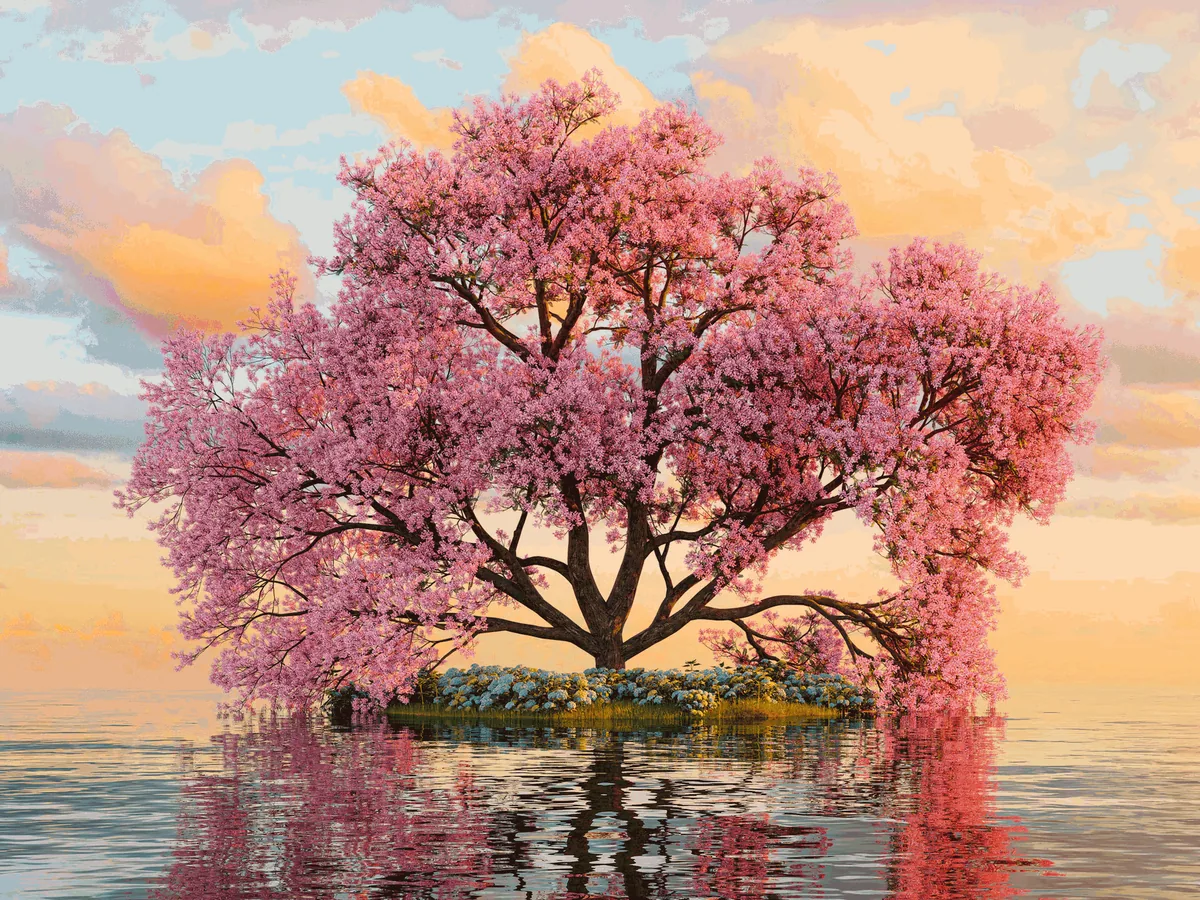
Drag a marker to pick a different color.
Choose an image
You can also drop or paste images anywhere on this page.
Colors
Style
Your images stay in your browser and are never uploaded.
About Color Palette from Image
How to extract a color palette from an image or photo and get its HEX, RGB and HSL color codes.Read the guideHide guide
Color Palette from Image is a free tool that extracts colors from any picture. Upload a photo, screenshot or artwork and it finds the main colors and turns them into a color palette, with HEX, RGB and HSL codes ready to copy.
Everything happens in your browser. Your images are never uploaded to a server, so you can use private photos and unreleased designs safely.
How to get a color palette from an image
- Choose an image. Pick a sample, upload your own photo, drag and drop a file, or paste an image from your clipboard. You can add several images and switch between them.
- Choose how many colors you want, from two to ten.
- Pick a style. Balanced follows the whole image, Vibrant favors bright colors, and Muted favors soft, dusty ones.
- Adjust the colors. Each color has a marker on the image; drag one to pick a different spot, or use the arrow keys for fine control.
- Use your palette. Copy the color codes, save the palette to your wishlist, export it, or open it in the generator or visualizer.
How the color extraction works
The tool groups similar pixels together in a color space designed around human vision, then picks the colors that matter most for the style you chose, keeping them distinct from one another. Every color it gives you is a real pixel from your image, so the marker shows exactly where it came from.
Tiny details, such as the blur along an edge, are ignored, so you get the colors you actually see rather than in-between shades.
Ideas for using an image color palette
- Build a website or brand color scheme from a photo that sets the right mood.
- Match colors for an interior from a picture of a room or fabric you love.
- Pull an outfit's color combination from a fashion photo.
- Keep a design consistent with a product shot or illustration.
- Find the exact color codes in a screenshot of a logo or interface.
Tips for better results
- Use a well-lit photo. Dark or very hazy images give darker, grayer palettes.
- Crop to what matters. A busy background adds colors you may not want.
- Try Vibrant for a punchy palette from a colorful photo, and Muted for natural, calm tones.
- Ask for more colors when an image has lots of detail, then remove the ones you don't need in the generator.
Frequently asked questions
- Are my images uploaded anywhere?
- No. The image is read and analyzed in your browser, and it never leaves your device.
- What image formats can I use?
- JPG, PNG, WebP and other formats your browser can open. Some formats, such as HEIC, depend on your browser.
- How many colors can I extract from an image?
- From two up to ten. A plain image with few colors may give fewer.
- Can I pick a specific color from my photo?
- Yes. Drag any marker to the exact spot you want, and its color updates as you move it.
- How do I get the HEX code of a color in an image?
- Extract a palette, then drag a marker onto the color. Click the swatch to copy its HEX, RGB or HSL code, depending on the format you've chosen.
- Is it free?
- Yes. It's free to use with no account, for as many images as you like.